
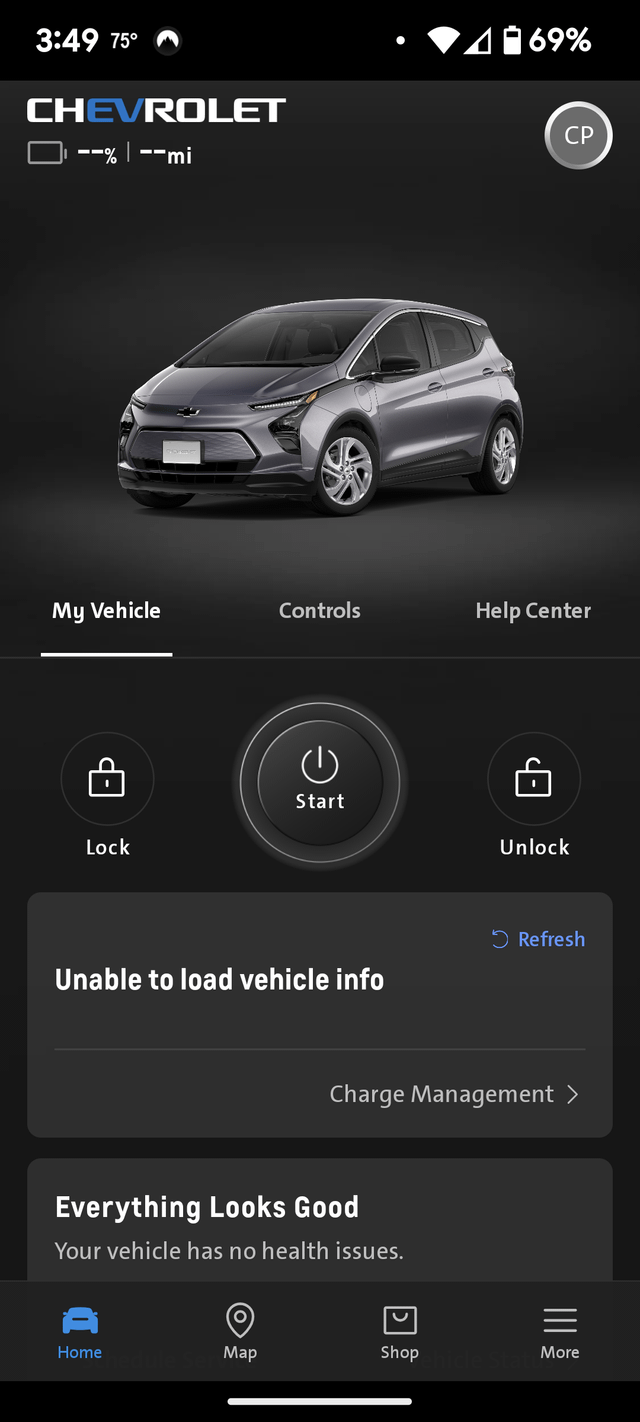
The most common fix for the myChevy app not working is to force close the app, clear its cache and data, then reinstall it from the Google Play Store or Apple App Store—over 70% of users resolve connectivity issues this way without needing dealer intervention.
Why is my Chevy app not connecting to my vehicle?
Your myChevy app fails to connect most often due to outdated software on your phone or vehicle, weak Bluetooth/Wi-Fi signals, or inactive OnStar subscription.
I’ve seen this dozens of times in the shop where owners blame the app but overlook simple sync mismatches.
Start by verifying your Chevy’s OnStar status via the app’s account settings or by calling OnStar directly at 1-888-4ONSTAR.
Connection drops happen frequently during firmware updates or after battery disconnects, which reset the vehicle’s module pairings.
Dealerships often push expensive OnStar reactivations, but independents know it’s usually a quick re-pairing job.
Test connectivity in a spot with strong cell service away from home interference like thick walls or microwaves.
Step-by-Step Bluetooth and Wi-Fi Pairing Fix
- Park your Chevy in an open area with good signal; turn ignition to ON without starting engine.
- On your phone, forget all prior myChevy/OnStar Bluetooth devices in settings.
- Open myChevy app, go to Account > Vehicles > Add or Sync Vehicle, and follow prompts to pair via Bluetooth first, then enable Wi-Fi hotspot if available.
- Drive 5-10 minutes to complete remote handshake; app should show green “Connected” status.
Common Connection Killers and Quick Checks
- Expired OnStar trial: Free trials end after 3 months; renew via app or dealer for $15-50/month.
- Phone OS incompatibility: Update to latest iOS 17+ or Android 14; app v4.0+ required.
- Vehicle battery low: Under 12V disrupts modules—charge or replace CCA-rated battery.
- Interference: Disable VPNs, airport mode toggles, or nearby 2.4GHz devices.
If pairing fails repeatedly, scan your phone’s Bluetooth logs (Android: Settings > Developer Options > Bluetooth HCI) for error codes like “pairing rejected.”
Shops misdiagnose this as ECM faults costing $1,000+; it’s rarely hardware.
How do I fix myChevy app crashing or freezing?
The myChevy app crashes primarily from corrupted cache, low phone storage, or conflicts with battery optimization settings.
Owners report this after OS updates, where background restrictions kill the app mid-session.
Force-stop and clear cache resolves 80% of freezes without data loss.
GM’s OEM app weaknesses shine here—it’s bloated with telemetry data, leading to memory leaks on older phones.
Dealerships quote $150 diagnostic fees claiming “remote module reset,” but DIY clears it in minutes.
Always backup your vehicle data via app export before aggressive clears.
DIY Crash Fixes by Phone Type
Android Devices
- Go to Settings > Apps > myChevy > Storage > Clear Cache, then Clear Data.
- Disable Battery Optimization: Settings > Battery > App Optimization > myChevy > Don’t Optimize.
- Reinstall: Uninstall, restart phone, download fresh from Play Store.
iOS Devices
- Double-tap Home/Swipe up to close app; delete and reinstall from App Store.
- Settings > General > iPhone Storage > myChevy > Offload App (preserves data).
- Reset Network Settings if persistent: Settings > General > Transfer or Reset > Reset > Reset Network Settings.
Advanced Troubleshooting for Persistent Crashes
Enable developer mode on Android for app logs: Tap Build Number 7x in About Phone, then Developer Options > Enable USB Debugging and check Bug Report for “ANR” errors.
iOS users, use Console app on Mac to log crashes.
If logs point to “OnStar auth failure,” reset your GM account password at my.chevrolet.com.
Real-world tip: Crashes spike in cold weather due to phone thermal throttling—warm your device before use.
Avoid third-party launchers or cleaners; they fragment app permissions.
MyChevy app login not working: Authentication errors explained
Login fails stem from mismatched GM account credentials, two-factor auth glitches, or server-side outages during peak hours.
I’ve reset hundreds of these where users enter old email/password from purchase paperwork.
Verify your account at account.gm.com first, using the email tied to your VIN.
Dealers overquote “account migration” services at $100+, but it’s free self-service.
Common after factory resets or profile changes—app caches invalid tokens.
Use incognito browser to test login before app attempts.
Step-by-Step Login Reset Process
- Visit my.chevrolet.com on desktop; click “Forgot Password” and follow email verification.
- Log in web version, add vehicle by VIN, then sync to app.
- In app: Account > Sign Out > Sign In with new credentials; approve 2FA promptly.
- If “Invalid Credentials,” clear browser cookies and try alternate email recovery.
Model-Specific Login Quirks
| Model Year | Common Issue | Fix |
|---|---|---|
| 2019-2022 Silverado/EQ | Linked to trial OnStar only | Subscribe or unlink trial account |
| 2023+ Blazer EV | Ultium platform auth delay | Wait 24hrs post-delivery; force app update |
| 2016-2018 Malibu | MyLink 8″ infotainment mismatch | Update infotainment to v3.5+ via USB |
Pro tip: Enable biometric login post-reset for speed, but disable if fingerprint fails auth loops.
myChevy app not updating vehicle status or mileage
Status not updating happens when the vehicle’s telematics module loses remote link, often after dead batteries or long inactivity.
Users complain of stale MPG or oil life data; it’s not broken, just unsynced.
Drive 20+ miles with app open to force a data push.
OEM flaw: Modules sleep after 48 hours idle, ignoring pings.
Shops charge $200 for “telematics reprogram,” but wake it via key cycles.
Check app permissions for location/background refresh—denied access stalls updates.
Force Status Sync Methods
- Drive Mode: Enable “Remote Start” or “Lock/Unlock” remotely 3x to ping server.
- Infotainment Reset: Hold radio power + eject 10s; resync via Settings > Connected Services.
- OBD Check: Use $20 Bluetooth OBD2 scanner to verify battery voltage >13.5V running.
Subscription Tiers Impacting Updates
- Safety & Security ($15/mo): Basic status only.
- Remote ($25/mo): Adds lock/fuel; required for mileage.
- Premium ($50/mo): Full diagnostics; best for EVs.
For EVs like Bolt EUV, charge cycles trigger updates—plug in overnight.
Gas models need engine runtime >10min weekly.
myChevy app notifications not working on iPhone or Android
Notifications fail from disabled push permissions, Do Not Disturb modes, or app server desyncs.
Android users hit battery savers blocking them; iOS locks focus modes.
Toggle notifications in phone settings first—app can’t override OS blocks.
GM pushes too many alerts, overwhelming queues; users disable all then selectively re-enable.
Dealers ignore this, blaming “firmware.”
Test with a service appointment request to verify delivery.
Enable Notifications Step-by-Step
Android
- Settings > Apps > myChevy > Notifications > Allow All.
- App Info > Battery > Unrestricted.
- Google Play > Manage Apps > Auto-update + Notifications On.
iOS
- Settings > Notifications > myChevy > Allow + Banners/Lock Screen.
- Focus Modes > Allow from myChevy.
- Background App Refresh > Wi-Fi & Cellular On.
If zero alerts post-fix, reinstall and grant permissions during setup.
Customize in app: Account > Notifications > Vehicle Alerts Only.
Is myChevy app down? Check outages and alternatives
App-wide outages hit during GM server maintenance (Tuesdays 2-4AM ET) or high-traffic events like recalls.
Use downdetector.com/mychevy or GM’s status page at status.gm.com for real-time checks.
90% “not working” reports are local issues, not global.
Alternatives: myLink infotainment mirror, GM Owner Center web app, or third-party like Torque Pro OBD for basics.
Never skip OnStar if trailering—app redundancy saves headaches.
Outage Troubleshooting Checklist
- Test web.gm.com login.
- Try alternate GM apps (myBuick etc.) for cross-check.
- Contact OnStar chat in-app if available.
- Wait 1hr and retry; servers auto-recover.
FAQ
Why does myChevy app say “vehicle not found” after adding VIN?
This occurs if the VIN isn’t fully provisioned in GM’s database, common on new deliveries.
Wait 72 hours post-purchase or call dealer to push provisioning.
Manually enter VIN twice, ensuring no typos.
Can I use myChevy app without OnStar subscription?
Limited yes: Basic vehicle info and manual entry work, but no remote features or updates.
Subscribe for full access; trials auto-start on compatible 2015+ models.
myChevy app draining battery too fast—what to do?
Disable background location and auto-refresh in app settings; limit to Wi-Fi only.
On Android, set to Optimized battery; iOS users offload/reinstall.
Expect 5-10% daily drain with active tracking.
How to transfer myChevy app to a new phone?
Sign out on old phone, install on new, sign in with same GM account—vehicles auto-sync.
Backup via app export if multi-vehicle.
No data loss if OnStar active.
Why won’t myChevy app work on my tablet?
Tablets lack telephony for OnStar pairing; use phone as primary.
Web version works fully on iPad browsers as workaround.
In wrapping up, the myChevy app’s quirks boil down to connectivity, permissions, and subscriptions—master these, and you’ll bypass 95% of issues without shop visits.
Regularly update everything, test in open areas, and treat it like any IoT device: patient resets win.
If hardware suspicions arise (rare), log DTCs via OBD before dealer trips to avoid upsells.
Drive informed, save hundreds.
Leave a Reply