
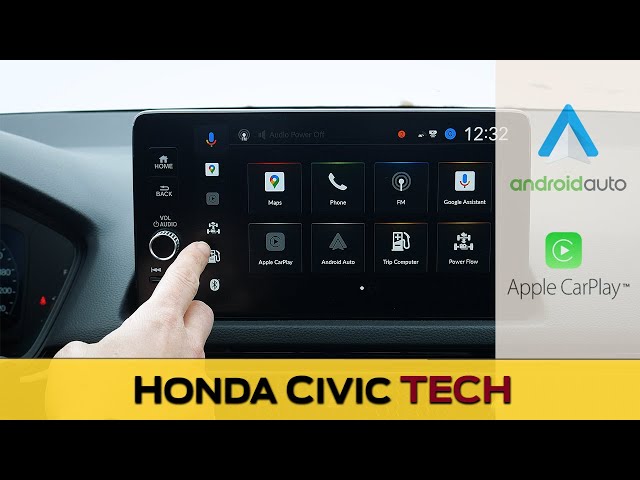
To reset a Honda Civic infotainment system, press and hold the power/volume knob for at least 10 seconds until the screen goes black and the system reboots. If that does not work, disconnect the negative battery terminal for 10 minutes, then reconnect it. For a full factory reset, navigate to Settings > System > Factory Data Reset on the touchscreen.
Why Is My Honda Civic Infotainment System Frozen or Not Responding?
The most common cause of a frozen Honda Civic infotainment system is a software glitch triggered by Bluetooth conflicts, corrupted cached data, or an incomplete over-the-air update. Honda’s infotainment platforms—whether it is the 7-inch Display Audio or the 9-inch system in newer Civics—run on embedded Linux-based software that occasionally hangs when processing multiple background tasks.
Owners of 10th-gen (2016–2021) and 11th-gen (2022–present) Civics report this issue far more frequently than earlier models. The system may freeze on a black screen, get stuck on the Honda logo during boot, or become completely unresponsive to touch inputs.
Before you panic and assume a hardware failure, understand that roughly 90 percent of these freezes resolve with a proper reset.
Common Triggers for Infotainment Freezing
- Bluetooth pairing conflicts – Connecting a new phone or having too many paired devices stored in memory overwhelms the system.
- Corrupted USB or CarPlay/Android Auto data – A faulty USB cable or a phone running incompatible software can crash the head unit.
- Incomplete software updates – If an OTA update gets interrupted by turning off the ignition mid-process, the system can boot-loop.
- Extreme temperature exposure – Prolonged heat or cold causes the capacitive touchscreen digitizer to malfunction temporarily.
- Memory overflow from cached apps – Over months of use, cached data accumulates and slows the processor to a crawl.
How to Soft Reset a Honda Civic Infotainment System
A soft reset reboots the infotainment software without erasing any of your saved settings, paired phones, or radio presets. This is the first step you should always try because it resolves the majority of temporary glitches in under a minute.
Method 1: Power Button Hold (All Model Years)
- Locate the physical power/volume knob on the center console dashboard.
- Press and hold the knob firmly for 10 to 15 seconds. Do not release it when the screen flickers.
- The display will go completely black. Wait another 5 seconds, then release the knob.
- The Honda logo will appear, and the system will boot up fresh within 30 to 60 seconds.
Method 2: Ignition Cycle Reset
- Turn the ignition completely off and remove the key (or exit with the smart key fob on push-button models).
- Open and close the driver’s door to ensure the vehicle fully powers down all accessory modules.
- Wait at least 2 full minutes. This allows the capacitors in the head unit to fully discharge.
- Restart the vehicle and check if the infotainment system boots normally.
Method 3: Volume Knob + Back Button Combo (10th-Gen Civic)
On 2016–2021 Civics with the 7-inch Display Audio system, some owners have found success by pressing and holding the volume knob and the physical “Back” button simultaneously for 10 seconds. This forces a deeper reboot cycle than the volume knob alone.
How to Hard Reset a Honda Civic Infotainment System Using the Battery
A hard reset by disconnecting the battery forces every electronic module in the vehicle to fully power cycle, including the infotainment head unit. This method works when the soft reset fails and the screen remains black or frozen on the Honda logo.
Step-by-Step Battery Disconnect Reset
- Turn off the ignition and remove the key.
- Open the hood and locate the 12V battery (on most Civics, it is on the driver’s side of the engine bay).
- Using a 10mm wrench, loosen the negative (black) terminal bolt.
- Remove the negative cable from the battery post and tuck it aside so it cannot accidentally touch the terminal.
- Wait 10 to 15 minutes. Some technicians recommend pressing the brake pedal or honking the horn during this time to drain residual capacitor charge.
- Reconnect the negative cable and tighten the bolt securely.
- Start the vehicle. The infotainment system will perform a full cold boot. You will need to re-pair your Bluetooth devices and re-enter any custom settings.
Pro Tip: After reconnecting the battery, you may notice the clock is wrong and the auto-up/down window function is lost. To recalibrate the windows, hold each window switch down for 5 seconds at the bottom, then hold it up for 5 seconds at the top. The clock will sync via GPS on models equipped with navigation.
How to Factory Reset Honda Civic Infotainment to Default Settings
A factory reset restores the infotainment system to its original out-of-the-box state, erasing all paired phones, saved Wi-Fi networks, radio presets, and personalized settings. Use this when persistent bugs survive both soft and hard resets.
Factory Reset on 11th-Gen Civic (2022–Present) with 9-Inch Touchscreen
- From the home screen, tap the gear icon to open Settings.
- Navigate to System.
- Scroll down and tap Factory Data Reset.
- Confirm by tapping Reset when prompted.
- The system will reboot automatically. This process takes 2 to 3 minutes.
Factory Reset on 10th-Gen Civic (2016–2021) with 7-Inch Display Audio
- Press the HOME button on the dashboard.
- Tap Settings (gear icon).
- Select System or Information depending on your trim level.
- Tap Factory Data Reset or Restore Factory Settings.
- Enter the system PIN if prompted (default is often 1234 or 0000).
- Confirm the reset and wait for the system to reboot.
Factory Reset on 9th-Gen Civic (2012–2015) with Navigation
Older 9th-gen Civics with the HondaLink navigation system require a different approach. Press and hold the Menu, Map/Guide, and Cancel buttons simultaneously for about 5 seconds.
A diagnostic menu will appear. Navigate to the reset option using the touchscreen and confirm.
How to Reset Honda Civic Infotainment When Screen Is Black
A completely black screen with no response to any button press usually indicates either a blown fuse, a failed display ribbon cable, or a bricked software state. Before assuming the worst, check the fuse first because it is the cheapest and easiest fix.
Check the Infotainment Fuse
- Locate the interior fuse box. On most Honda Civics, it is under the dashboard on the driver’s side behind a plastic cover.
- Consult your owner’s manual to identify the Audio Unit or Display fuse. On 10th-gen Civics, this is typically a 7.5A fuse in slot 23 or 29.
- Remove the fuse using the plastic fuse puller tool stored in the fuse box.
- Inspect the fuse. If the metal filament inside is broken or burned, replace it with a fuse of the exact same amperage rating.
- Start the vehicle and test the infotainment system.
When the Fuse Is Fine but the Screen Stays Black
If the fuse checks out, the issue may be a disconnected or damaged display ribbon cable behind the dashboard. This is a known issue on 2016–2018 Civics where the ribbon cable can work loose over time due to vibration.
Removing the head unit and reseating the cable connector often resolves the problem. This requires removing the center dashboard trim panel, which is held in place by clips and two Phillips screws.
How to Update Honda Civic Infotainment Software to Fix Bugs
Honda periodically releases software updates that fix known bugs including Bluetooth disconnections, CarPlay lag, and random reboots. Keeping your system updated prevents many issues that would otherwise require a reset.
Updating via Wi-Fi (11th-Gen Civic)
- Connect the infotainment system to a stable Wi-Fi network (Settings > Wi-Fi).
- Navigate to Settings > System > Software Update.
- Tap Check for Updates. If an update is available, tap Download and Install.
- Keep the vehicle running with the engine on throughout the entire update process. Do not turn off the ignition.
- The system will reboot automatically when the update completes.
Updating via USB Drive (10th-Gen Civic)
- Visit the official Honda navigation update website or contact your dealer to obtain the latest firmware file.
- Download the file to a USB drive formatted to FAT32.
- Insert the USB drive into the vehicle’s USB port (the one labeled for data, not just charging).
- Navigate to Settings > System > Software Update and follow the on-screen prompts.
- Wait for the update to finish. The screen may go black for several minutes during the process—this is normal.
Model-Specific Infotainment Reset Differences
What to Do If the Honda Civic Infotainment Reset Does Not Work
If you have tried every reset method and the infotainment system is still malfunctioning, the problem is likely hardware-related. Common hardware failures include a dead head unit, a faulty touchscreen digitizer, or a damaged wiring harness connector behind the dashboard.
When to Visit the Dealer vs. an Independent Shop
- Under warranty – Always go to the dealer. Infotainment head units are covered under Honda’s 3-year/36,000-mile basic warranty. Some extended warranties also cover them.
- Out of warranty – An independent shop specializing in automotive electronics can often diagnose and repair the issue for significantly less than a dealer replacement. A dealer may quote $1,500 to $2,500 for a full head unit replacement, while an independent electronics specialist may repair it for $200 to $600.
- DIY replacement – Aftermarket head units from brands like Pioneer, Kenwood, or Sony can replace the factory unit with better features. You will need a dash kit, wiring harness adapter, and a steering wheel control interface module specific to your Civic generation.
Known Honda TSBs Related to Infotainment Failures
Honda has issued multiple Technical Service Bulletins (TSBs) addressing infotainment problems. TSB 20-064 covers 2016–2020 Civic infotainment freezing and rebooting. TSB 21-045 addresses Apple CarPlay disconnection issues on 2019–2021 models.
If your vehicle falls within these ranges, mention these TSBs at the dealer—some repairs may be covered even outside the standard warranty period under a goodwill policy.
Frequently Asked Questions
Will resetting my Honda Civic infotainment delete my phone contacts?
A soft reset will not delete any data. A factory reset will erase all paired Bluetooth devices, which means your phone’s contact list synced to the system will be removed. Your phone itself will retain all contacts—you will simply need to re-pair the phone and re-enable contact syncing.
How long does a Honda Civic infotainment reset take?
A soft reset takes approximately 30 to 60 seconds. A battery disconnect reset requires 10 to 15 minutes of waiting before reconnecting, plus another 1 to 2 minutes for the system to boot. A factory reset through the menu takes 2 to 3 minutes to complete.
Can a weak car battery cause infotainment problems?
Yes. A failing 12V battery with low voltage can cause the infotainment system to behave erratically, including random reboots, frozen screens, and Bluetooth dropouts. If your battery is more than 3 to 4 years old, have it tested before blaming the head unit.
Why does my Honda Civic infotainment keep rebooting in a loop?
A boot loop typically indicates corrupted firmware, often caused by an interrupted software update. The battery disconnect method can sometimes break the loop. If it persists, the dealer may need to reflash the head unit firmware using Honda’s i-HDS diagnostic tool.
Does disconnecting the battery reset the Honda Civic radio code?
Modern Civics (2016 and newer) do not require a radio code after battery disconnection. However, 2012–2015 models with certain head units may prompt for a code. This code is typically found in the owner’s manual packet or can be retrieved from Honda’s website using your VIN.
Final Thoughts: Keep Your Honda Civic Infotainment Running Smoothly
Most Honda Civic infotainment problems are software-related and fixable with a simple reset. Start with the soft reset by holding the volume knob, escalate to a battery disconnect if needed, and only perform a factory reset as a last resort before seeking professional help.
Regular software updates and limiting the number of paired Bluetooth devices will prevent the majority of issues from returning. If your system is still under warranty, never hesitate to bring it to the dealer—especially if a relevant TSB exists for your model year.
Leave a Reply