
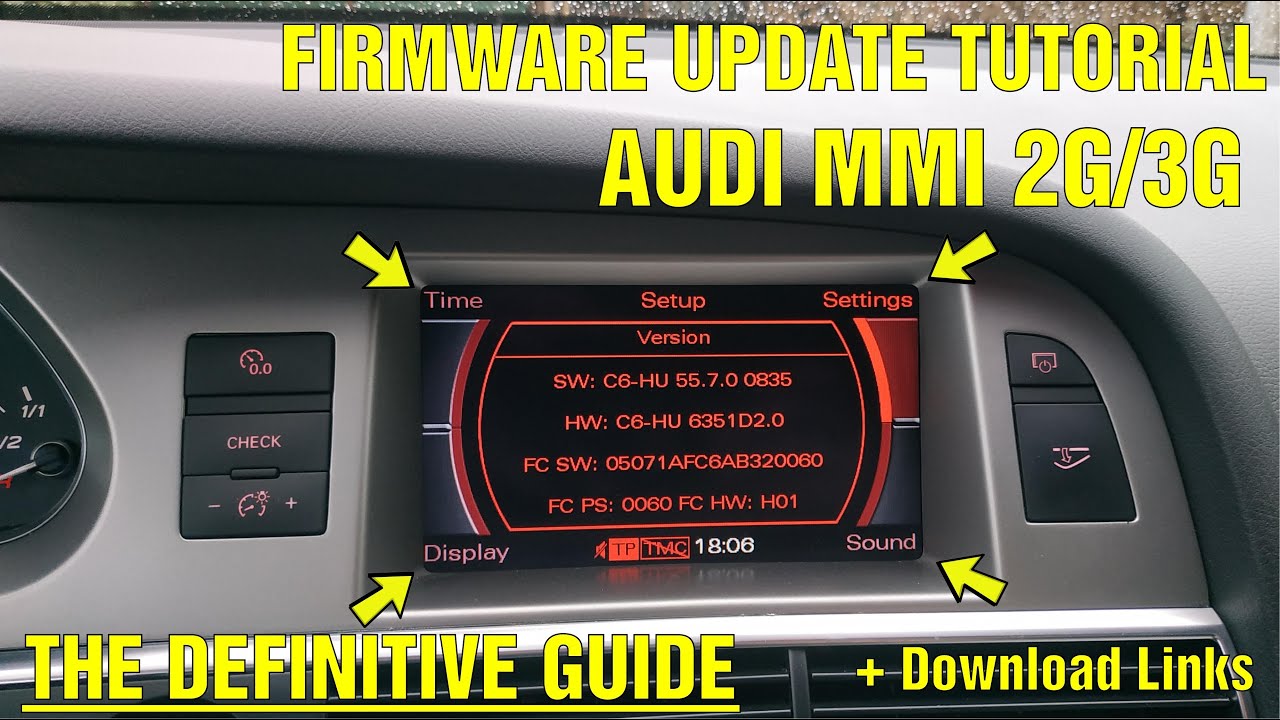
The easiest way to update your Audi MMI system is by downloading the latest firmware or map update file from the myAudi portal or an authorized source, transferring it to a formatted SD card or USB drive, and inserting it into your vehicle’s SD slot to begin the installation. For most Audi models with MMI 3G, MIB1, or MIB2, you can do this yourself at home in under an hour — no dealership visit required.
How Do I Check Which Audi MMI Version I Have?
You can find your MMI version by pressing and holding the MENU or SETUP button on the center console, then navigating to the “Version Info” or “System Info” screen. This displays your current firmware version, hardware part number, and map database version.
Knowing your exact MMI generation is critical before attempting any update because applying the wrong firmware can brick your head unit. Audi has used multiple MMI generations over the years, and each has its own update method.
Identifying Your MMI Generation
- MMI 2G: Found in early A6, A8, and Q7 models (2004–2008). Uses a CD-based navigation and has no SD card slot for updates.
- MMI 3G / 3G+ (High/Basic): Common in A4, A5, A6, A7, A8, and Q5/Q7 from roughly 2009–2016. Supports SD card and USB updates.
- MIB1 (Modularer Infotainment-Baukasten): Found in 2013–2016 A3, TT, and some newer A4/A6 models. Uses a different update method and may require a green engineering menu.
- MIB2 / MIB2+: Used in most Audi models from 2017 onward. Typically supports over-the-air (OTA) updates or myAudi-based downloads.
- MIB3 / MIB4: Latest generation found in 2022+ models. OTA updates are standard, and manual methods are rarely needed.
Steps to Find Your Firmware Version
- Start the ignition — the engine does not need to be running, but the system must be fully booted.
- On the MMI knob cluster, press and hold the SETUP or MENU button for about 5 seconds.
- Navigate to Settings > Version Information or System Info.
- Write down the firmware version (e.g., HN+R_US_AU_P1001) and the map version (e.g., 8R0060884L).
If you see a version starting with “HN+” or “HN,” you are on MMI 3G High. If it starts with “BNav,” you are on MMI 3G Basic. This distinction matters because the firmware files are completely different.
How to Update Audi MMI Firmware at Home
You can update MMI 3G firmware at home using a formatted SD card and the correct firmware file downloaded from Audi’s update portal or trusted community sources. The process takes 30 to 90 minutes depending on your model and generation.
What You Need Before Starting
- A Windows PC to download and extract firmware files.
- An SD card (8GB or 32GB depending on your generation) formatted to FAT32.
- A stable battery charger — if voltage drops during the update, it can corrupt the head unit permanently.
- The correct firmware file for your exact hardware version.
Updating MMI 3G / 3G+ Firmware
- Download the firmware package and extract it to the root of your SD card. The folder structure must be exact — do not rename any folders.
- Connect a battery charger or trickle charger to your car’s battery to maintain voltage throughout.
- Insert the SD card into Slot 1 of the MMI SD card reader.
- Press and hold the SETUP + MENU + CENTER BUTTON simultaneously for several seconds to access the engineering (green) menu.
- Navigate to System Update and select the SD card as the source.
- Select the firmware and confirm the installation. Do not turn off the ignition during the update.
- Wait for the system to reboot automatically. This can take up to 60 minutes.
Updating MIB1 and MIB2 Systems
MIB-based systems typically allow you to update through the standard Settings > System > System Update menu. Some MIB2 units also support updates via the myAudi app, where Audi pushes firmware OTA or provides a downloadable package linked to your VIN.
If your car is still under an active Audi connect subscription, you may already have received a notification to update via the car’s own data connection. Check the notifications tab in the MMI before manually updating.
How to Update Audi MMI Navigation Maps
You can update your Audi MMI navigation maps by downloading the latest map data from the myAudi portal, transferring it to an SD card, and installing it through the vehicle’s settings menu. Map updates are separate from firmware updates and are released more frequently — typically twice a year.
Step-by-Step Map Update Process
- Log into myaudi.com and register your vehicle using your VIN.
- Navigate to the Map Update section. Your current map version should be displayed.
- Download the correct map package for your region and MMI generation. Files can be 20–30GB, so use a fast connection.
- Extract the contents to a freshly formatted FAT32 SD card (32GB or larger recommended).
- Insert the SD card and go to Settings > System Update > Update via SD card.
- Follow the on-screen prompts. Map updates can take 45 to 90 minutes depending on file size.
Free vs. Paid Audi Map Updates
Common Audi MMI Update Problems and Fixes
The most common MMI update failures include black screens after installation, frozen progress bars, SD card read errors, and the system reverting to an older version. Nearly all of these are caused by wrong firmware files, insufficient battery voltage, or corrupted SD cards.
MMI Black Screen After Update
A black screen usually means the firmware installation completed but the head unit failed to reboot cleanly. Try a hard reset by holding the power/volume knob and the eject button simultaneously for 10–15 seconds. If that fails, disconnect the negative battery terminal for 10 minutes and reconnect.
Update Freezes or Fails Midway
- Remove the SD card and verify that every file transferred correctly — re-download if in doubt.
- Use a different SD card. Cheap or older cards are the number one cause of update failures.
- Ensure your battery charger is delivering consistent voltage. A weak battery during a firmware flash is a recipe for disaster.
“Update Not Compatible” Error
This error almost always means you downloaded a firmware file for the wrong MMI generation. Double-check your hardware part number and compare it against the firmware file’s compatibility list. MMI 3G High and MMI 3G Basic are not interchangeable.
How Much Does an Audi MMI Update Cost at the Dealership?
Most Audi dealerships charge between $150 and $350 for a combined firmware and map update, depending on your model and the time required. Some dealerships bundle the update with a service visit, which may lower the cost if you are already paying for maintenance.
If you are comfortable following technical instructions, doing it yourself saves you the labor charge. The firmware files themselves are often available for free or minimal cost through the myAudi portal or community-maintained resources. The only real investment is a good SD card and a few hours of patience.
Dealerships frequently quote $400+ for “infotainment system updates” that include unnecessary diagnostics. If your system is working fine and you just want the latest firmware or maps, the DIY route is straightforward and safe when done correctly.
Frequently Asked Questions
Will updating my Audi MMI erase my settings or paired devices?
In most cases, a firmware update preserves your Bluetooth pairings, radio presets, and personal settings. However, a full system reinstall or a major firmware jump may reset everything. Write down your key settings before starting, just in case.
Can I use a USB drive instead of an SD card for the update?
For MMI 3G systems, an SD card is required — the update process will not recognize a USB drive. MIB2 and newer systems may support USB-based updates. Always check your specific generation’s documentation.
How do I know if my Audi map update is already current?
Go to Settings > Version Info and check the map database version number. Compare it against the latest version listed on the myAudi portal for your region. If they match, you are already up to date.
Is it safe to drive during an Audi MMI firmware update?
While the update installs, the MMI screen will be unavailable. Navigation, audio, and some vehicle settings will be inaccessible.
It is safer to perform the update while parked with the engine off and a battery charger connected. Do not interrupt the process.
Can a bad MMI update void my warranty?
Using unofficial firmware files from unknown sources can technically void the infotainment portion of your warranty. Stick to files sourced through myAudi or provided by your dealership to stay protected.
Final Advice for Audi Owners Updating Their MMI
Updating your Audi MMI system is one of the few maintenance tasks you can completely handle yourself without specialized tools or training. The key is identifying your exact MMI generation, using the correct firmware and map files, and ensuring stable power throughout the process.
Rushing through the steps or using the wrong file is where problems start. Take your time, verify your version numbers, and your system will run smoother and navigate more accurately than it has in years.
Leave a Reply