
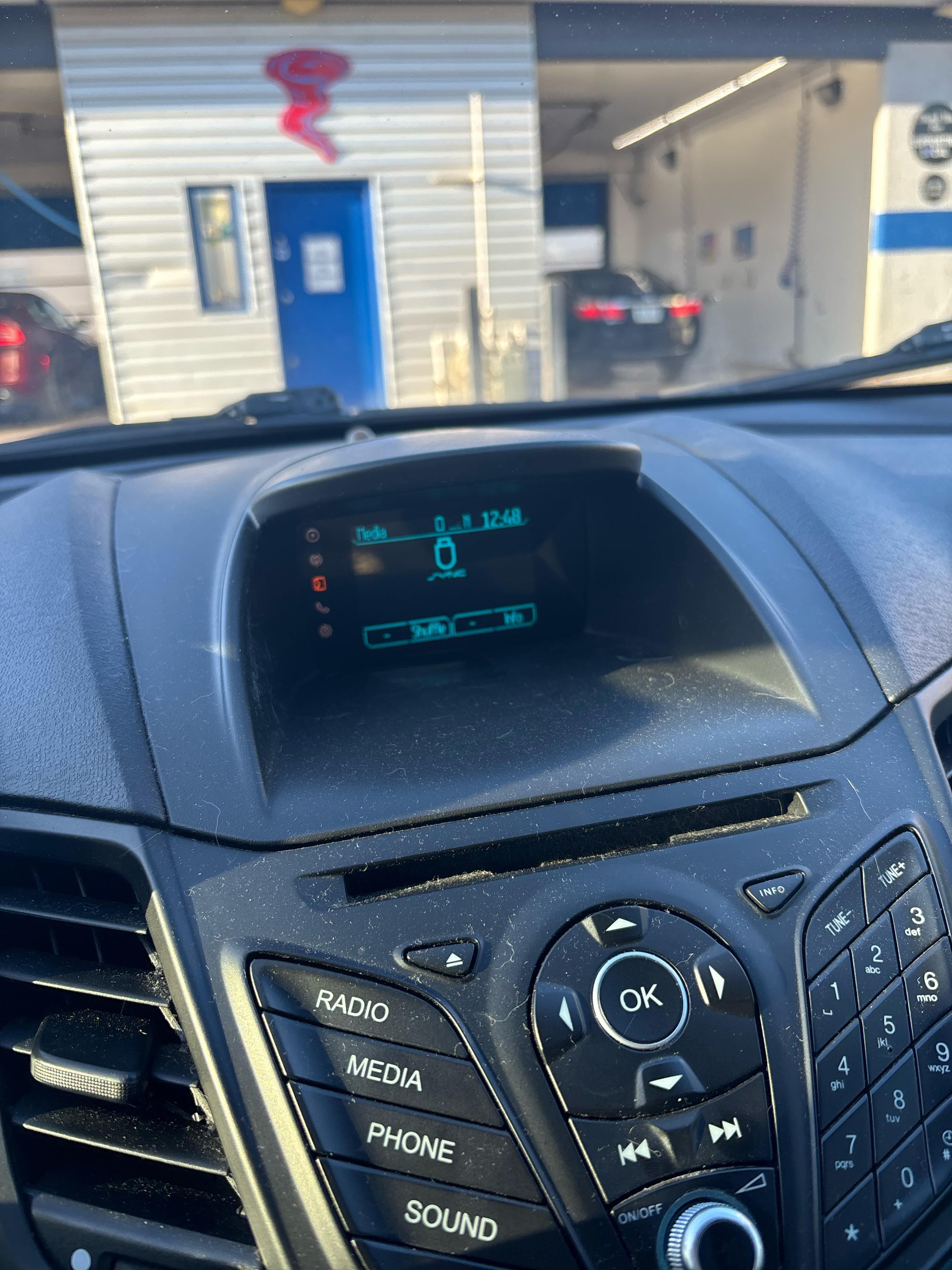
Ford Sync not working is most commonly caused by a software glitch, corrupted Bluetooth pairing, or a failing APIM (Accessory Protocol Interface Module). The quickest fix is a master reset: go to Settings > General > Master Reset on your Sync screen, or disconnect the negative battery terminal for 10 minutes. If the problem persists, your Sync module likely needs a firmware update or hardware replacement.
Why Is My Ford Sync Not Working?
Ford Sync failures almost always trace back to one of four root causes: outdated or corrupted firmware, a bad Bluetooth pairing, a failing APIM module, or a blown fuse. The system runs on embedded software that degrades over time, especially if you have never updated it since purchase.
Before you spend money at a dealership, understand which generation of Sync you have. The troubleshooting steps differ significantly between Sync with MyFord, Sync 2 (MyFord Touch), Sync 3, and Sync 4/4A. Knowing your version saves you from applying the wrong fix.
How to Identify Your Ford Sync Version
- Sync 1 (2008–2012 models): Basic voice-activated system with a small monochrome or two-line display. No touchscreen.
- Sync 2 / MyFord Touch (2011–2015 models): 8-inch touchscreen with four quadrant home screen. Known for extreme lag and freezing.
- Sync 3 (2016–2021 models): Responsive touchscreen with Apple CarPlay and Android Auto. Runs on QNX-based software.
- Sync 4 / Sync 4A (2021+ models): Cloud-connected, wireless CarPlay/Android Auto, large portrait or landscape screens.
Check your owner’s manual, look at your touchscreen interface, or enter your VIN on Ford’s owner portal to confirm your exact version. This matters because Sync 2 and Sync 3 have completely different reset procedures and failure patterns.
Ford Sync Not Connecting to Phone
Delete all existing Bluetooth pairings from both your phone and the Sync system, then re-pair from scratch. This resolves roughly 70% of phone connection failures because corrupted pairing profiles cause Sync to reject the handshake even when it appears connected.
Step-by-Step Bluetooth Re-Pairing Process
- On your phone, go to Bluetooth settings and “Forget” or “Unpair” every Ford Sync entry.
- On your Sync screen, navigate to Settings > Bluetooth > Paired Devices and delete your phone from the list.
- Turn Bluetooth off on your phone, wait 10 seconds, then turn it back on.
- On Sync, select “Add Bluetooth Device” and put the system into discovery mode.
- On your phone, scan for devices and select “Ford Sync” or your vehicle’s name.
- Confirm the PIN matches on both devices and accept all permission prompts including contacts and messages access.
Common Causes of Phone Connection Failure
- Too many paired devices stored: Sync systems typically hold 10–12 devices. Once full, new connections become unstable. Delete old devices you no longer use.
- Phone software update conflict: iOS and Android updates frequently break Bluetooth compatibility with older Sync versions. Ford releases patches, but they lag months behind phone manufacturers.
- Bluetooth module failure: On Sync 2 systems, the Bluetooth module integrated into the APIM can fail independently. You will still see the pairing option, but connections drop within seconds.
- Interference from other devices: Smartwatches, tablets, and other Bluetooth accessories in the vehicle can cause pairing conflicts. Remove all other Bluetooth devices and test again.
Ford Sync Screen Frozen or Not Responding
A frozen Sync screen usually indicates the APIM is locked in a processing loop and needs a hard reboot. Perform a soft reset first by holding the power button and the seek-right button simultaneously for 10 seconds. If the screen remains unresponsive, pull the fuse or disconnect the battery.
Soft Reset Methods by Sync Generation
Hard Reset When Soft Reset Fails
If the screen stays frozen after a soft reset, you need to cut power to the APIM completely. Locate fuse 29 (most Ford models) or the fuse labeled “Audio” or “SYNC” in your owner’s manual fuse diagram.
Pull the fuse, wait 60 seconds, reinsert it, and start the vehicle. The Sync system will perform a full cold boot.
Disconnecting the negative battery terminal for 10–15 minutes achieves the same result and also resets all vehicle modules. This is more thorough but will erase your radio presets and may require relearning your power windows and throttle body on some models.
Ford Sync Bluetooth Audio Not Working
When Bluetooth connects but no audio plays, the issue is usually an incorrect audio source selection or a media audio profile that failed to activate. On your Sync screen, manually switch the audio source to “Bluetooth” rather than FM or USB, even if your phone shows it is connected.
Fixing Bluetooth Audio Dropouts
- Check media audio profile: On your phone’s Bluetooth settings for the Sync connection, ensure “Media Audio” is toggled on. Some updates disable this profile by default.
- Disable Wi-Fi on your phone: On older Sync 2 systems, Wi-Fi and Bluetooth share the same 2.4GHz band and cause interference. Turn off Wi-Fi temporarily to test.
- Adjust audio fade/balance: A known Sync 2 bug causes the audio to shift entirely to one channel or go silent after a reset. Go to audio settings and re-center the fade and balance.
- Check the amplifier: Ford vehicles with the Sony or B&O premium audio systems have a separate amplifier. If the amp fuse blows, Sync works but produces zero sound. Check fuse 32 or the dedicated amp fuse in your model.
Ford Sync Keeps Restarting or Rebooting
Constant rebooting points to corrupted firmware or a failing APIM that cannot complete its boot cycle. This is the most expensive Sync failure because it almost always requires either a firmware reflash or full APIM replacement.
Causes of Continuous Rebooting
- Corrupted firmware after a failed update: If your Sync was updating when the vehicle was turned off or the battery died, the firmware is likely corrupted. A USB firmware reinstall from Ford’s owner website may recover it.
- Failing APIM hardware: Sync 2 MyFord Touch systems are notorious for APIM failures between 60,000 and 100,000 miles. The internal memory develops bad sectors and the module enters a boot loop.
- Low battery voltage: Sync systems are voltage-sensitive. A weak battery or corroded terminals can cause the APIM to restart repeatedly because it cannot maintain stable power during boot. Test your battery first.
- Overheating APIM: Mounted behind the dashboard, the APIM can overheat in hot climates or when cabin temperatures are extreme. If rebooting only happens on hot days, heat is the likely culprit.
DIY Firmware Recovery via USB
- Visit owner.ford.com, create an account, and enter your VIN.
- Download the latest Sync firmware update for your specific system.
- Format a USB drive to exFAT or FAT32 and extract the downloaded files to the root of the drive.
- Start your vehicle, insert the USB into the media USB port (not the charging port), and follow the on-screen prompts.
- The update takes 15–30 minutes. Do not turn off the vehicle during the process.
Ford Sync No Sound or Audio Cutting Out
No sound from Sync while the screen works normally is almost always an amplifier, speaker wiring, or audio processing issue rather than a Sync software problem. Dealerships frequently misdiagnose this as a Sync failure and charge $800+ for an APIM when the real fix is a $15 fuse or a $200 amplifier.
Diagnosing No-Sound Issues
- Test all audio sources: Try FM radio, AM radio, Bluetooth audio, USB audio, and CD (if equipped). If no source produces sound, the problem is downstream of Sync in the amplifier or speaker wiring.
- Check the amplifier fuse: Ford uses separate fuses for the head unit and the amplifier. The amp fuse is often in the engine bay fuse box. A blown amp fuse kills all audio while Sync continues to function.
- Test with headphones: If your vehicle has rear headphone jacks, test audio through them. If headphones work but speakers do not, the amplifier is the problem.
- Inspect speaker wiring: Ford F-150 and Explorer models are known for speaker wiring chafing at door hinge harnesses, causing intermittent or complete audio loss in individual doors.
How to Master Reset Ford Sync by Model
A master reset restores Sync to factory defaults and resolves most software-related issues. This erases all paired phones, saved addresses, and personal settings, so note anything you want to re-enter later.
Ford F-150 (2015–2020 with Sync 3)
- Press the Settings icon on the touchscreen.
- Select General.
- Scroll down and select Master Reset.
- Confirm the reset when prompted.
- The system will reboot and display the initial setup screen.
Ford Escape (2013–2019 with Sync 2/3)
- Sync 2 models: Settings > System > Master Reset > Yes. If the touchscreen is unresponsive, hold Power + Seek Right for 10 seconds.
- Sync 3 models: Settings > General > Master Reset > Continue. The system restarts within 2 minutes.
Ford Explorer (2011–2019)
- 2011–2015 (Sync 2): Settings > System > Master Reset. If frozen, pull fuse 29 from the interior fuse box for 60 seconds.
- 2016–2019 (Sync 3): Settings > General > Master Reset. For persistent issues, disconnect the battery for 15 minutes to reset all modules.
Ford Fusion (2013–2020)
The Fusion uses the same Sync 2 and Sync 3 platforms as the Escape. Follow the identical reset procedures above. Fusions from 2013–2016 with Sync 2 have an especially high APIM failure rate, so if the master reset does not resolve your issue, budget for a replacement APIM ($150–$400 for the part).
Ford Sync Update Not Installing
Failed Sync updates are typically caused by an incompatible USB drive, incorrect file extraction, or a weak vehicle battery that drops voltage during the update process. Ford requires a USB 2.0 or 3.0 drive formatted to FAT32 with at least 4GB of free space.
Troubleshooting Failed Updates
- Use a different USB drive: Some USB 3.1 and USB-C drives with adapters are not recognized by Sync. Use a standard USB-A drive from a major brand like SanDisk or Samsung.
- Reformat and re-extract: Format the drive to FAT32 (not NTFS or exFAT for Sync 2), download the files again, and extract them directly to the root directory. Do not place files inside a subfolder.
- Run the engine during the update: A battery charger or running engine prevents voltage drops that abort the update. Never attempt a Sync update with the ignition in accessory mode only.
- Check your current version first: Go to Settings > General > About (Sync 3) to see your current firmware version. If it already matches the latest version, the update will not install because it detects no change is needed.
Frequently Asked Questions
Can I replace a Ford Sync APIM myself?
Yes, on most Ford models the APIM mounts behind the touchscreen and connects with a single harness. You need a trim removal tool to pop off the dashboard bezel, then remove 4 screws to access the module. However, a replacement APIM may require dealer-level programming with Forscan or IDS to match your vehicle’s configuration.
Does Ford Sync work without a subscription?
Basic Sync functionality including Bluetooth, USB audio, and voice commands works without any subscription. FordPass Connect features like remote start, vehicle location, and Wi-Fi hotspot require an active subscription after the complimentary trial period expires.
Why does Ford Sync say “USB device not supported”?
This message appears when the USB drive contains files in an unsupported format (FLAC, ALAC, or very high bitrate files), uses an incompatible file system, or exceeds the maximum number of files Sync can index. Convert files to MP3 or WMA format and keep the total file count under 5,000 for reliable playback.
How much does it cost to fix Ford Sync at a dealership?
Dealership repair costs range from $150 for a software reflash to $1,200 for a full APIM replacement with programming. Independent shops with Forscan access can often perform the same work for 40–60% less. Always get a diagnostic scan before authorizing any repair to confirm the APIM is actually the problem.
Is there a class action lawsuit for Ford Sync problems?
Multiple class action lawsuits have been filed regarding MyFord Touch (Sync 2) systems, primarily covering 2011–2014 Ford Edge, Explorer, and Focus models. Some settlements provided extended warranty coverage for APIM replacements. Check with your dealer using your VIN to see if your vehicle qualifies for any open coverage extensions or customer satisfaction programs.
Stop Guessing and Start Diagnosing Your Ford Sync
Ford Sync problems are frustrating but rarely catastrophic. Start with the simplest fix—a soft reset or Bluetooth re-pair—before escalating to firmware updates or hardware replacement. Know your Sync generation, test methodically, and do not let a dealership replace your APIM without confirming the failure through proper diagnostics.
Most Sync issues that owners pay hundreds to fix could have been resolved with a 10-minute reset and a firmware update downloaded for free from Ford’s website.
Leave a Reply