
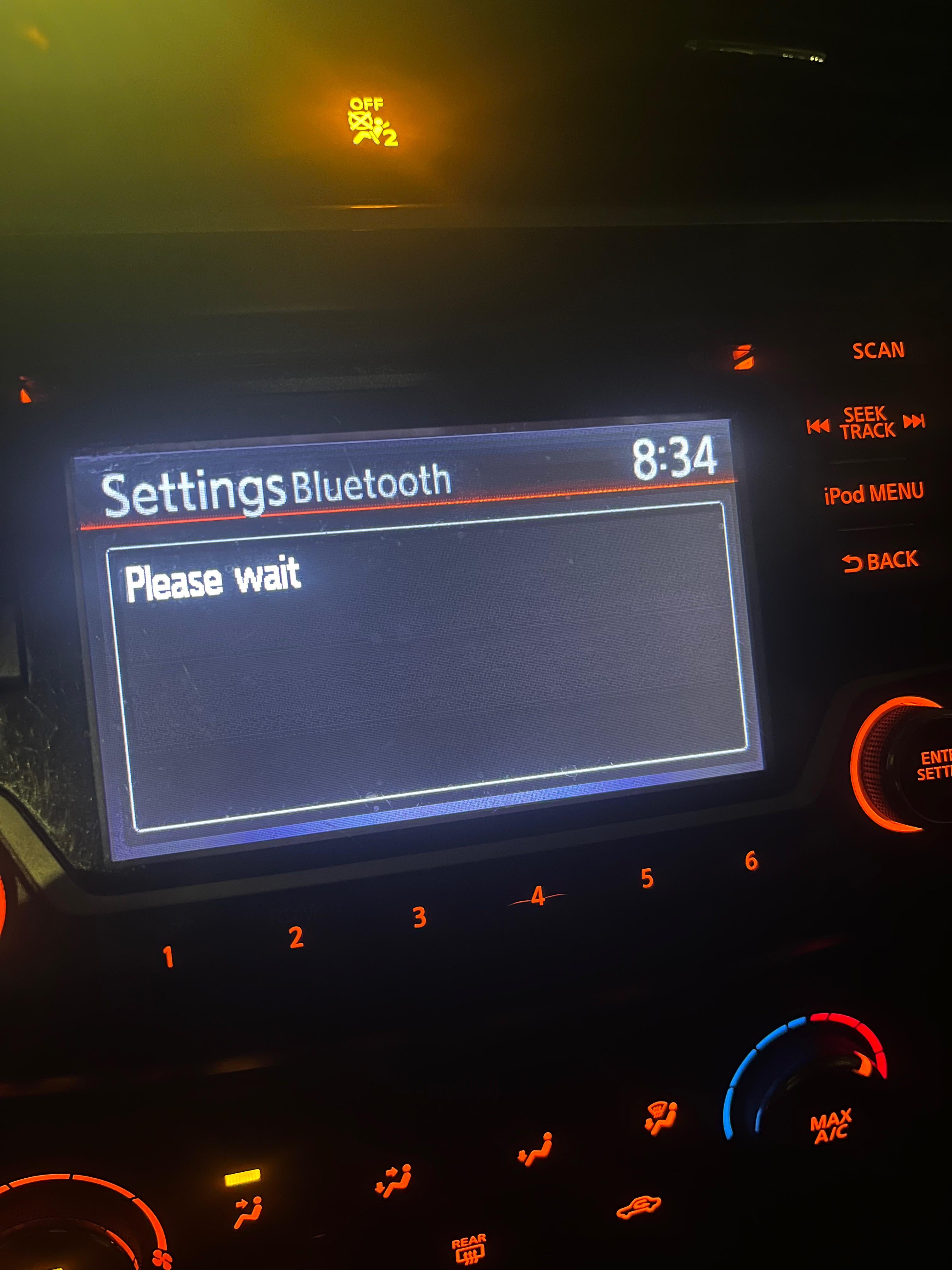
If your Nissan Bluetooth is not working, the quickest fix is to restart the system: turn off the car, remove the key, wait two minutes, then restart and re-pair your phone. For persistent issues, delete all paired devices from both the car and phone, check for software updates, or perform a factory reset of the infotainment system.
How to Fix Nissan Bluetooth Not Connecting?
Start by ensuring your phone’s Bluetooth is discoverable and delete any old or unused pairings from the Nissan system before attempting to reconnect.
This step often resolves connection hiccups caused by conflicting device profiles. Many Nissan owners overlook that accumulated pairings can cause the system to freeze or reject new connections.
Access the Bluetooth settings on your Nissan’s touchscreen, navigate to the paired devices list, and remove all entries. On your phone, forget the Nissan connection from its Bluetooth menu. Then, initiate pairing from scratch while the car is in park with the engine running.
Step-by-Step Re-Pairing Process
- On your Nissan infotainment screen, go to Settings > Bluetooth > Paired Devices.
- Delete all devices listed; confirm any prompts.
- On your smartphone, open Bluetooth settings and forget the Nissan connection.
- Enable Bluetooth on your phone and set it to discoverable mode.
- In the Nissan system, select “Add New Device” and follow on-screen prompts to pair.
- Accept any pairing codes or permissions on both devices.
If the issue remains, try pairing with a different phone to isolate whether the problem is car-specific or device-related. Compatibility with older phones can sometimes cause intermittent failures.
Why Is My Nissan Bluetooth Not Pairing?
Bluetooth pairing failures in Nissan vehicles are commonly due to software glitches, outdated firmware, or compatibility issues with your phone’s operating system.
Software glitches can occur after system updates or prolonged use without a restart. Outdated infotainment firmware may lack support for newer Bluetooth protocols, especially with recent iOS or Android versions.
Compatibility is a major factor; some older Nissan models use Bluetooth 2.1 or 3.0, which may struggle with devices running Bluetooth 5.0. Always check your Nissan’s manual for supported profiles like Hands-Free Profile (HFP) or Advanced Audio Distribution Profile (A2DP).
Common Causes and Quick Checks
- Software Version Mismatch: Ensure your phone’s OS is up to date, as patches often fix Bluetooth connectivity bugs.
- Interference: Other wireless devices (e.g., dashcams, USB adapters) can cause signal interference; turn them off temporarily.
- Battery Optimization: On Android phones, disable battery optimization for Bluetooth apps to prevent background disconnections.
- Nissan System Memory: The infotainment system may retain corrupted data; a reset clears this.
If pairing consistently fails, note any error messages on the touchscreen—these can indicate specific issues like “Connection Failed” or “Device Not Supported.”
How to Reset the Nissan Bluetooth System
Reset Nissan Bluetooth by performing a soft reset (holding the power button for 10 seconds) or a factory reset through the settings menu to restore defaults.
A soft reset is safe and won’t erase saved data like radio presets, while a factory reset wipes all customizations. Start with the soft reset: with the car on, press and hold the volume/power knob on the infotainment screen for 10 seconds until the system restarts.
Factory Reset Instructions for Different Systems
For NissanConnect systems (common in newer models), navigate to Settings > System > Factory Data Reset. For older systems with physical buttons, the process may involve a combination of button presses during startup.
Tip: Before a factory reset, note down your pairing PIN and any customized settings, as they will be lost.
If the touchscreen is unresponsive, disconnect the car battery for 10 minutes to force a hard reset. This can clear deeper system errors but may require reprogramming the clock and radio stations.
Model-Specific Solutions for Nissan Bluetooth Issues
Solutions vary by model; for example, 2013-2018 Altimas often need a USB firmware update, while 2019 and newer Rogues can reset via the touchscreen software menu.
Older models like the Sentra (2012-2016) may have a known issue with the Bluetooth module overheating, leading to intermittent connections. In such cases, improving ventilation around the unit or seeking a module replacement might be necessary.
Breakdown by Popular Models
- Nissan Altima (2013-2018): Download firmware from Nissan’s official site onto a USB drive, insert into the car’s USB port, and follow the on-screen update prompts. This fixes many pairing drops.
- Nissan Rogue (2014-2020): Use the touchscreen: go to Settings > System > Software Update. If unavailable, contact a dealer for a TSB (Technical Service Bulletin) update for known Bluetooth glitches.
- Nissan Sentra (2013-2019): Check for loose wiring behind the infotainment unit; DIYers can carefully remove the trim to inspect connections. A common fix is securing the antenna cable.
- Nissan Pathfinder (2013-2020): Perform a “CAN bus reset” by turning the ignition to ON without starting the engine, pressing the accelerator pedal three times, then starting the car—this reinitializes electronics.
Always consult your vehicle’s service manual for model-specific procedures, as incorrect resets can void warranties.
Common Misdiagnoses and Overquoted Repairs for Nissan Bluetooth
Dealerships and shops often overquote for Bluetooth module replacements when a simple software update or reset would resolve the issue, costing hundreds unnecessarily.
In real-world diagnostics, I’ve seen quotes for $500-$800 for module swaps on Altimas, only to find that a free firmware update fixed the problem. Always ask for a diagnostic fee waiver if they recommend hardware replacement without thorough software troubleshooting.
Red Flags in Repair Estimates
- Immediate Module Replacement: If a shop jumps to replacing the Bluetooth module without trying resets or updates, get a second opinion.
- Ignoring Software Updates: Many technicians overlook TSBs that address known bugs; insist they check for available updates first.
- Overcharging for Labor: Bluetooth diagnostics should take less than an hour; labor rates beyond $100 may be inflated.
DIYers can often download firmware from Nissan’s owner portal using the VIN, saving dealership fees. However, if hardware is faulty (e.g., no power to the module), professional help may be needed for wiring repairs.
Frequently Asked Questions (FAQ)
Can extreme weather affect Nissan Bluetooth performance?
Yes, very cold or hot temperatures can temporarily impair Bluetooth range and connectivity. Allow the car interior to stabilize in temperature before troubleshooting, as electronics may underperform in extremes.
How do I update my Nissan infotainment system for Bluetooth fixes?
Visit Nissan’s official website, enter your VIN to check for updates, download onto a USB drive, and install via the car’s USB port. Ensure the car is running during the update to avoid power interruptions.
Why does my Nissan Bluetooth disconnect during calls?
This is often due to signal interference or an outdated phone OS. Try disabling Wi-Fi on your phone during calls, as 2.4GHz Wi-Fi can conflict with Bluetooth. Also, check for phone case interference—metal cases can block signals.
Is it safe to drive while troubleshooting Bluetooth?
No, always perform Bluetooth resets and pairing while parked in a safe location. Distracted driving for tech issues is a major safety risk and may violate local laws.
Final Thoughts: Proactive Steps for Reliable Connectivity
Regularly update your Nissan’s software and your phone’s OS to prevent Bluetooth issues. If problems recur, document the symptoms—like when disconnects happen—to help technicians diagnose faster. For older models, consider aftermarket Bluetooth adapters if OEM fixes fail, but ensure they’re compatible with your car’s audio system to avoid further complications.
Leave a Reply