
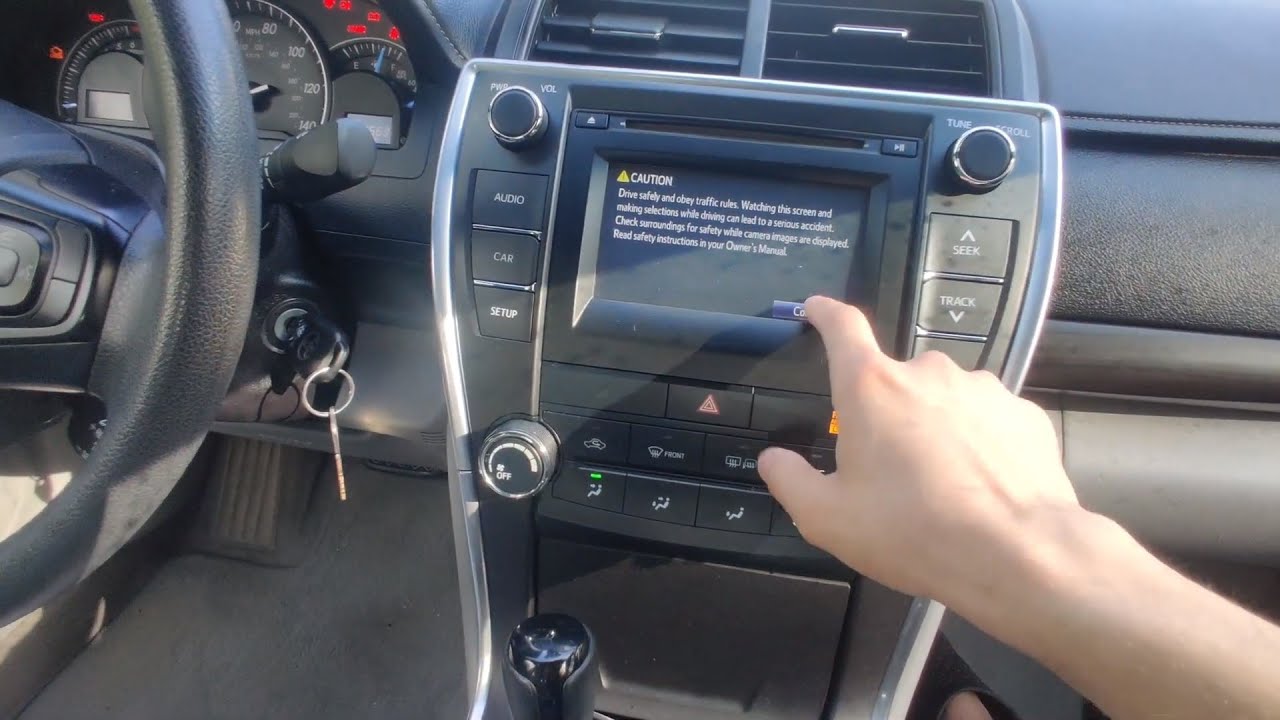
The Toyota Camry touch screen stops working most commonly due to a failed digitizer, software glitch, loose ribbon cable, or a defective head unit. In many cases, a simple reset or software update fixes the problem, but if the digitizer has physically failed, the entire head unit or touchscreen digitizer must be replaced. Costs range from $0 for a DIY reset to $800–$1,500 for a full head unit replacement at a dealership.
Why Is My Toyota Camry Touch Screen Not Working?
The most common reason a Toyota Camry touch screen stops working is a failed digitizer—the thin transparent layer that registers your finger touches. This is especially prevalent in 2012–2017 Camry models with the Entune system and in some early 2018–2020 models with Entune 3.0.
However, not every unresponsive screen means hardware failure. Before you spend money at a dealership, you need to rule out software issues, calibration drift, and loose internal connections. I have seen owners pay $1,200 for a head unit replacement when a 30-second reset would have solved the problem.
Quick Diagnostic Checklist
- Does the screen display images but ignore touch input? Likely a digitizer failure.
- Is the screen completely black or frozen on the Toyota logo? Likely a software or boot failure.
- Does the screen respond to touch but register the wrong inputs? Likely calibration drift or digitizer degradation.
- Does the screen work intermittently, especially in extreme heat or cold? Likely a loose ribbon cable or failing digitizer connection.
- Did the problem start immediately after a software update? Likely a firmware corruption issue.
How to Reset a Toyota Camry Touch Screen
A hard reset is the first step in every diagnosis and resolves the problem in roughly 30–40% of cases. This clears temporary software glitches without affecting your saved settings like paired phones or radio presets.
Method 1: Volume Knob Reset (2018–2024 Camry)
- Turn the ignition to the ON position but do not start the engine.
- Press and hold the volume/power knob on the head unit for at least 10–12 seconds.
- The screen will go black and reboot automatically.
- Release the knob once the Toyota logo reappears.
- Wait 60–90 seconds for the system to fully initialize before testing the touchscreen.
Method 2: Battery Disconnect Reset (All Model Years)
- Turn off the ignition and remove the key.
- Open the hood and locate the negative (black) battery terminal.
- Use a 10mm wrench to loosen the terminal clamp and disconnect the negative cable.
- Wait at least 10 minutes to allow all capacitors in the head unit to fully discharge.
- Reconnect the negative cable and tighten the clamp securely.
- Start the vehicle and allow the infotainment system to boot completely before touching the screen.
Pro Tip: If you have a sunroof or power windows, you may need to perform a re-initialization procedure after a battery disconnect. Your owner’s manual covers this under the “Initialization” section.
Method 3: Factory Reset Through Settings (If Partial Touch Works)
- Navigate to Settings on the touchscreen.
- Select General or System.
- Scroll to Factory Reset or Initialize.
- Confirm the reset. The system will reboot and restore factory defaults.
- You will need to re-pair your Bluetooth devices and re-enter any custom settings.
Toyota Camry Touch Screen Digitizer Failure: Signs and Solutions
The digitizer is the most common point of failure across all Camry model years. It is a thin capacitive layer bonded to the front of the LCD panel. When it fails, the display continues to work perfectly, but the screen ignores all touch input or registers phantom touches.
How to Confirm Digitizer Failure
- The display shows the correct image, clock, and menu graphics with no distortion.
- Tapping the screen produces zero response or erratic ghost touches.
- The physical buttons on the steering wheel and dash still control audio and navigation normally.
- The problem persists after a hard reset and battery disconnect.
- In some cases, only specific zones of the screen stop responding while other areas still work.
Model-Specific Digitizer Issues
| Camry Model Year | Head Unit System | Common Digitizer Problem | Typical Failure Mileage |
|---|---|---|---|
| 2012–2014 | Entune Audio | Complete touch loss or ghost touches in lower screen zones | 60,000–100,000 miles |
| 2015–2017 | Entune Audio Plus / Premium | Intermittent touch loss, worse in hot weather | 50,000–90,000 miles |
| 2018–2020 | Entune 3.0 | Dead zones on the left side of the screen, phantom touches | 30,000–70,000 miles |
| 2021–2024 | Toyota Audio Multimedia | Less common; usually software-related rather than hardware | Varies |
Fixing a Failed Digitizer
You have two options: replace just the digitizer or replace the entire head unit. Replacing only the digitizer is significantly cheaper but requires moderate technical skill.
Option A: Digitizer-Only Replacement (DIY)
- Purchase a replacement digitizer specific to your Camry’s model year and screen size. These cost between $25 and $60 on Amazon or eBay.
- Remove the head unit from the dash. This typically requires a trim removal tool and removing 2–4 screws behind the climate control panel.
- Separate the bezel from the head unit housing using plastic pry tools.
- Disconnect the old digitizer ribbon cable from the main board. It is usually a ZIF (zero insertion force) connector—lift the locking tab gently before pulling the cable.
- Clean the LCD surface thoroughly with isopropyl alcohol to remove old adhesive residue.
- Peel the adhesive backing from the new digitizer and carefully align it onto the LCD panel.
- Reconnect the ribbon cable, reassemble the head unit, and reinstall it in the dash.
- Test the touchscreen before snapping all trim pieces back into place.
Option B: Full Head Unit Replacement
- Dealership cost: $800–$1,500 including parts and labor.
- Independent shop cost: $500–$900.
- DIY with refurbished unit: $150–$400 for a tested used head unit from a salvage yard or online seller.
If your Camry is still under the 3-year/36,000-mile basic warranty, the head unit is covered. Some owners have also had success getting goodwill repairs from Toyota even slightly outside the warranty window, especially if there is a documented pattern of failures for their model year.
Toyota Camry Touch Screen Software Update Fix
Toyota has released multiple software updates over the years that address touchscreen responsiveness, freezing, and boot-loop issues. If your screen works intermittently or freezes after startup, a software update may resolve it entirely.
How to Check and Install Updates
- Visit the Toyota Owners website and enter your VIN to check for available infotainment updates.
- If an update is available, download it to a USB drive formatted in FAT32.
- Insert the USB drive into the vehicle’s USB port (the one labeled for data, not just charging).
- Navigate to Settings then Software Update on the touchscreen.
- Select the USB drive as the update source and follow the on-screen prompts.
- Do not turn off the vehicle during the update process. It typically takes 15–30 minutes.
If the touchscreen is completely unresponsive and you cannot navigate to the update menu, a dealership can flash the firmware using their Techstream diagnostic tool. This usually costs $100–$150 in labor.
Loose or Damaged Ribbon Cable Inside the Head Unit
A less commonly diagnosed cause is a loose ribbon cable connecting the digitizer to the head unit’s main board. Vibration from normal driving, temperature cycling, and age can cause these thin flat cables to work loose from their connectors.
Symptoms of a Loose Ribbon Cable
- Touch screen works intermittently or only when the dashboard is tapped.
- Touch response changes depending on ambient temperature.
- Screen works perfectly for a few minutes after startup then stops responding.
- Problem appeared gradually over several weeks or months rather than suddenly.
How to Reseat the Ribbon Cable
- Remove the head unit from the dashboard following the same procedure as the digitizer replacement.
- Open the head unit housing by removing the screws on the back and sides.
- Locate the flat ribbon cable running from the touchscreen digitizer to the main circuit board.
- Gently lift the ZIF connector lock, remove the cable, inspect it for damage or corrosion, then reinsert it firmly.
- Close the lock and reassemble the unit.
- Test before reinstalling in the dash.
Warning: Ribbon cable connectors are fragile. Use gentle, even pressure. If you crack the ZIF connector, the entire main board may need replacement, which significantly increases the repair cost.
Toyota Camry Touch Screen Not Working After Battery Replacement
This is one of the most frequently reported scenarios. After replacing the car battery or jump-starting the vehicle, the touchscreen either goes completely black or becomes unresponsive.
Why This Happens
The head unit’s firmware can corrupt during a sudden power interruption. Unlike a simple radio, modern Toyota infotainment systems run a full operating system that requires a proper shutdown sequence. Cutting power abruptly is equivalent to pulling the plug on a computer while it is running.
The Fix
- Perform the battery disconnect reset described earlier in this article, but wait a full 15 minutes before reconnecting.
- If the screen remains black, try holding the power/volume knob for 20+ seconds while the ignition is on.
- If neither method works, the firmware likely needs to be reflashed at a dealership.
- For future battery replacements, use a memory saver device plugged into the OBD-II port to maintain power to the electronics during the swap.
Preventing Toyota Camry Touch Screen Problems
While some failures are inevitable due to component aging, you can extend the life of your touchscreen with a few simple habits.
- Avoid using harsh cleaning chemicals on the screen. Use only a microfiber cloth lightly dampened with water or a screen-safe cleaner.
- Do not press the screen with excessive force. Capacitive screens require only a light fingertip touch.
- Use a sunshade when parked in direct sunlight. Prolonged heat exposure accelerates digitizer degradation and can cause adhesive layers to delaminate.
- Keep the software updated. Toyota periodically releases stability patches that prevent freezing and boot-loop issues.
- Install a screen protector designed for automotive infotainment displays. This adds a thin protective layer against scratches and minor impacts.
Frequently Asked Questions
Can I use an aftermarket touchscreen to replace my Toyota Camry head unit?
Yes. Companies like Pioneer, Kenwood, and Sony make aftermarket head units that fit the Camry dash with a Metra or Scosche installation kit.
This is often cheaper than an OEM replacement and gives you upgraded features like Apple CarPlay and Android Auto on older model years. Expect to spend $300–$600 for a quality aftermarket unit plus the installation kit and wiring harness adapter.
Does Toyota have a recall for Camry touch screen issues?
As of now, Toyota has not issued a formal recall specifically for touchscreen failures on the Camry. However, there have been Technical Service Bulletins (TSBs) issued for certain model years addressing infotainment freezing and rebooting. Check with your local dealer using your VIN to see if any TSBs apply to your vehicle.
Why does my Camry touch screen work in the morning but stop working in the afternoon?
This is a classic sign of heat-related digitizer failure. The capacitive layer expands in high temperatures and loses its ability to accurately detect touch input. If the problem consistently correlates with cabin temperature, the digitizer is failing and will eventually stop working permanently regardless of temperature.
Will a Toyota Camry touch screen problem affect my backup camera?
If the screen displays the backup camera image but ignores touch input, the digitizer is the problem and the camera is functioning normally. If the entire screen goes black when shifting into reverse, the issue may be with the head unit itself, the camera, or the wiring between them. Test by checking if the screen shows any image at all when the car is in reverse.
How long should a Toyota Camry touchscreen last?
Under normal conditions, a Toyota Camry touchscreen should last 8–12 years or 100,000–150,000 miles. However, exposure to extreme heat, direct sunlight, and heavy use can shorten this lifespan significantly. The 2012–2017 generation tends to fail earlier than average, with many owners reporting issues between 50,000 and 80,000 miles.
Final Thoughts: Fixing Your Toyota Camry Touch Screen the Right Way
Start with the simplest fix first—a hard reset or battery disconnect costs nothing and resolves the issue more often than dealerships will admit. If that fails, move to a software update, then inspect for digitizer or ribbon cable failure. Replacing the digitizer yourself is a straightforward DIY job that takes under an hour and costs less than $60 in parts.
Only consider a full head unit replacement if the digitizer swap does not solve the problem or if the LCD panel itself is damaged. Avoid overpaying at the dealership for a problem you can diagnose and fix in your own garage.
Leave a Reply