
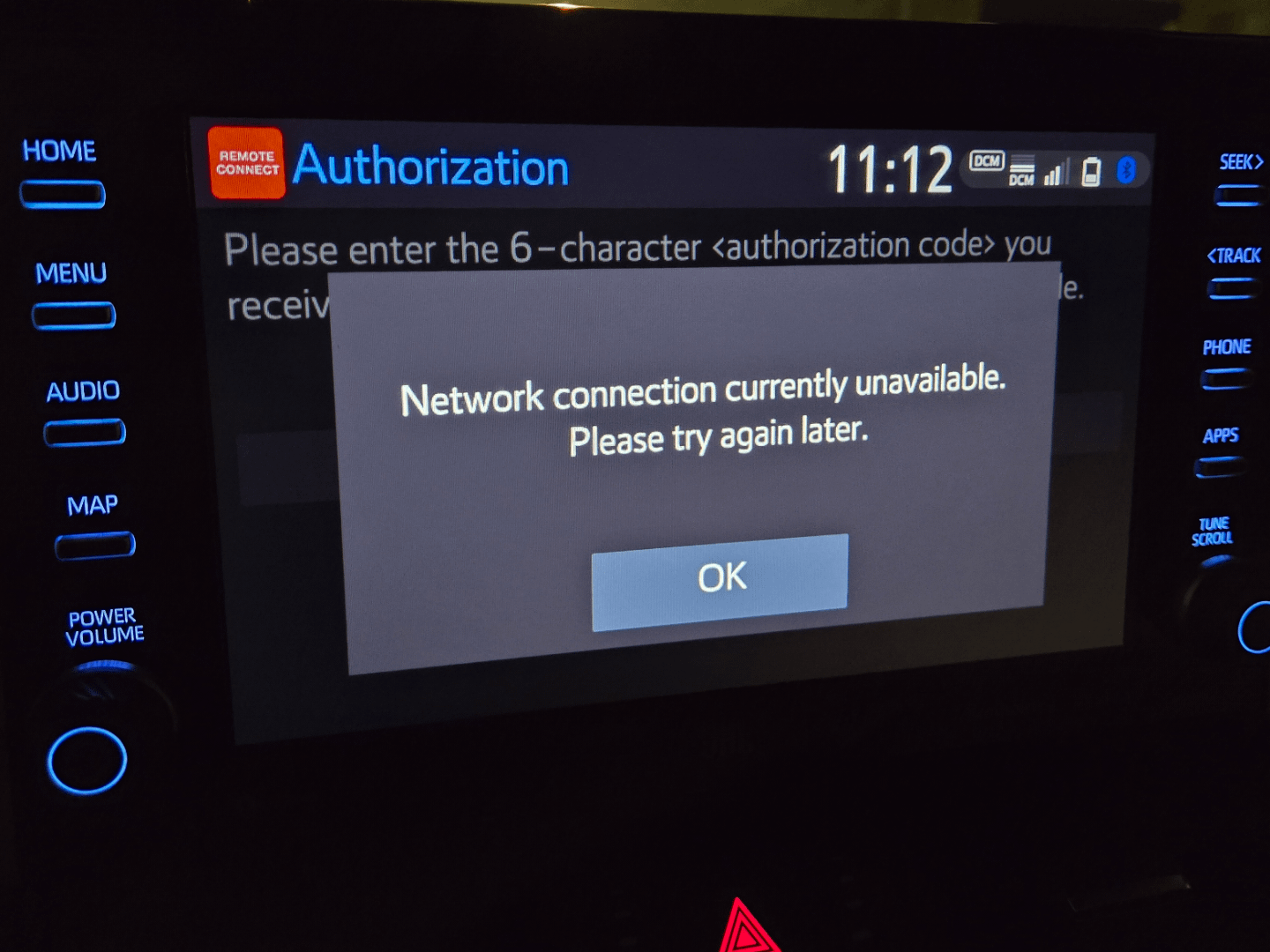
Toyota Remote Connect authorization often fails due to an incorrect or incomplete vehicle association in the Toyota app, a Temporary Communication Module (TCM) fault, or a cellular network issue with the vehicle’s embedded modem. The fix involves confirming your vehicle’s VIN in the app, performing a system reset, or visiting a dealer for a TCM/DCM (Data Communication Module) software update.
Why is my Toyota Remote Connect app saying “authorization not working”?
The “authorization not working” message typically means the Toyota app cannot securely verify your ownership and link to your vehicle’s specific systems. This is most commonly caused by an incorrect vehicle profile setup, a data sync problem between Toyota’s servers and your car, or a temporary glitch in the vehicle’s Telematics system.
Common Causes of Authorization Failure
- Incorrect Vehicle Profile in the App: The VIN entered during setup has a typo, or the vehicle was previously registered to another owner’s Toyota account.
- Toyota Telematics Subscription Lapse: Remote Connect is a paid service after the initial trial. An expired or inactive subscription will block all commands.
- Data Communication Module (DCM) / Telematics Control Module (TCM) Fault: The hardware in the car responsible for cellular communication may have failed or entered a fault state.
- Poor Cellular Connectivity for the Vehicle: The car must be in an area with adequate AT&T cellular coverage (in the U.S.) for the embedded modem to communicate with Toyota’s servers.
- Outdated Vehicle Software/Firmware: Software bugs in the infotainment or telematics system can prevent secure authorization handshakes.
- Security Key or Certificate Mismatch: Rarely, a cryptographic key between the app and the vehicle becomes desynchronized.
How do I reset my Toyota Remote Connect system?
A full system reset often resolves temporary glitches by forcing the DCM to re-establish its connection from scratch. The process varies by model year and infotainment system.
Method 1: Infotainment System Power Cycle (Most Models)
- Turn the ignition to ON (engine off, accessories on).
- On the touchscreen, navigate to Settings > General > System Information or similar.
- Look for an option like Factory Data Reset, Restart System, or Power Cycle. Select it.
- Wait for the system to fully reboot. This may take 2-5 minutes.
Method 2: DCM Reset via Fuse Pull (Advanced)
For persistent issues, pulling the DCM fuse is a more definitive reset. Consult your owner’s manual for the exact fuse location, which is usually in the cabin fuse box.
- Turn the vehicle completely off and remove the key/fob.
- Locate and remove the fuse labeled DCM, TEL, or Telematics. Wait 2-3 minutes.
- Reinstall the fuse firmly.
- Start the vehicle and wait at least 5 minutes with the ignition on before testing the app again.
Method 3: Soft Reset for Specific Models (e.g., 2020+ RAV4, 2023+ Crown)
Some newer Toyota Audio Multimedia systems allow a soft reset: press and hold the volume knob for 10-15 seconds until the screen turns black and the Toyota logo reappears.
How do I properly associate my vehicle in the Toyota app?
Incorrect association is the top cause of authorization failure. You must ensure the vehicle is linked to your primary Toyota account.
- Remove Existing Association: In the Toyota app, go to Manage Vehicles. If the vehicle is listed, select it and choose Remove Vehicle.
- Verify VIN Accuracy: Physically check the VIN on the driver’s side dashboard or door jamb. Enter it meticulously into the app during setup.
- Complete the In-Car Authorization: For first-time setup, you often need to complete a step inside the vehicle. This may involve entering a code displayed on the app into the infotainment screen, or confirming an authorization prompt on the vehicle’s display.
- Ensure Proper User Profile: If the car has multiple user profiles (e.g., Toyota User Profile), make sure the primary driver’s profile is selected and linked to the same Toyota account email used in the app.
What are the model-specific solutions for Remote Connect issues?
Certain Toyota models are known for specific telematics quirks. Here are targeted fixes.
2019-2021 RAV4, 2020-2022 Highlander, and Similar Gen
These models often suffer from DCM firmware bugs that require a dealer update. A common symptom is the system failing after an OTA update.
The fix is a DCM software reflash using Toyota’s Techstream diagnostic tool. This is typically a warranty or goodwill repair if the vehicle is under 3 years/36,000 miles.
2023+ Vehicles with Toyota Audio Multimedia (TAM)
Newer systems integrate telematics more deeply. If authorization fails, perform the Soft Reset mentioned above first.
If that fails, a full Factory Data Reset of the infotainment system may be necessary. You will need to re-pair phones and re-enter settings.
2018-2022 Camry, 2019-2022 Corolla
A known issue involves the temporary loss of Toyota Safety Sense (TSS) functions alongside Remote Connect failure. This points to a communication bus fault. A dealer can run a health check and often fix it with a system update or by clearing persistent fault codes in the TSS-ECU and DCM.
When should I take my Toyota to the dealership for Remote Connect problems?
You should visit a Toyota dealer if DIY resets and correct app setup do not work, or if you suspect a hardware failure.
- Check Engine or Other Warning Lights are On: A DCM fault can sometimes trigger other system warnings.
- The Issue Occurs Immediately After Service: Body shop work, windshield replacement, or electrical work can damage antenna cables connected to the DCM.
- Multiple Resets Have Failed: This indicates a deeper software or hardware fault that requires professional diagnostic tools.
- You Need a DCM Software Update: This is a proprietary operation that cannot be done at home.
At the dealer, request a Telematics System Health Check. Ask them to specifically verify DCM software version, check for relevant Technical Service Bulletins (TSBs), and ensure the cellular subscription is active on their network portal. A diagnostic fee may apply, but if the vehicle is under the basic warranty, the repair should be covered.
Frequently Asked Questions (FAQ)
Does Toyota Remote Connect work without a subscription?
No. After the initial complimentary trial period (usually 1-3 years depending on the model and package), an active Remote Connect subscription is required. You can check and manage your subscription status in the Toyota app under “Account.”
Why does my app connect but commands like lock/unlock fail?
This points to a partial system failure. The app authenticates your identity, but the command doesn’t reach or execute in the vehicle. Common causes are a vehicle low battery, the car being in a location with no cellular service, or a fault with the vehicle’s Body Control Module (BCM) that executes the physical command.
I sold my Toyota but it’s still linked to my app. How do I remove it?
Log into the Toyota app, go to Manage Vehicles, select the old vehicle, and choose Remove Vehicle. For complete disassociation, you may also need to call Toyota Customer Support (1-800-331-4331) to ensure the VIN is removed from your account at the server level.
Can I use Toyota Remote Connect on a used car I just bought?
Yes, but the vehicle must first be disassociated from the previous owner’s account. This is typically handled by the Toyota dealer during the used vehicle reconditioning process. If bought privately, the previous owner must remove it from their app, and you must then add it to yours using the correct VIN.
Final Diagnostic Steps and Considerations
Before investing significant time or money, perform this final checklist: ensure your smartphone’s OS and the Toyota app are updated to the latest versions. Verify your vehicle is in an open-air area with good cell reception. If possible, test with another smartphone to rule out a phone-specific issue. Persistent “authorization not working” errors are rarely user error; they are most often a system sync or hardware communication fault requiring a reset or professional update from Toyota.
Leave a Reply