
Honda smartphone connection not working is usually caused by an incompatible or damaged USB cable, outdated infotainment software, a dirty or worn USB port, incorrect connection settings, or a phone software update that broke compatibility.
The fix often starts with using an OEM cable, updating your Honda’s head unit firmware, and resetting network settings on your phone.
Why Is My Honda Apple CarPlay Not Working?
Apple CarPlay failure in Honda vehicles most commonly stems from using a charge-only cable, a software mismatch between iOS and your head unit, or Siri being disabled on your iPhone.
Before assuming hardware failure, check that Siri is turned on, you are using a genuine or MFi-certified Lightning or USB-C cable, and your iPhone is unlocked when you first plug it in.
Common Causes
- Non-certified or damaged USB cable. Cheap gas-station cables often lack data pins. CarPlay requires a stable data connection, not just power delivery.
- Siri is turned off. CarPlay depends on Siri for voice commands. If Siri is disabled under Settings, CarPlay will not initialize on many Honda head units.
- USB port issue. Honda models like the 11th-gen Civic and 5th-gen CR-V have the CarPlay-specific USB-A or USB-C port labeled with a phone icon. Plugging into the wrong port delivers power only.
- iOS or infotainment firmware mismatch. A recent iPhone update can temporarily break CarPlay on older Honda firmware versions until Honda pushes a head unit patch.
- Screen Time or Content Restrictions. If CarPlay is restricted under Screen Time settings on your iPhone, the connection will silently fail.
Step-by-Step Fix
- Go to Settings > Siri & Search and confirm “Press Side Button for Siri” is enabled.
- Navigate to Settings > Screen Time > Content & Privacy Restrictions > Allowed Apps and make sure CarPlay is toggled on.
- Replace your cable with an Apple-original or MFi-certified cable shorter than three feet.
- Plug into the correct USB port on the center console. Look for the smartphone icon.
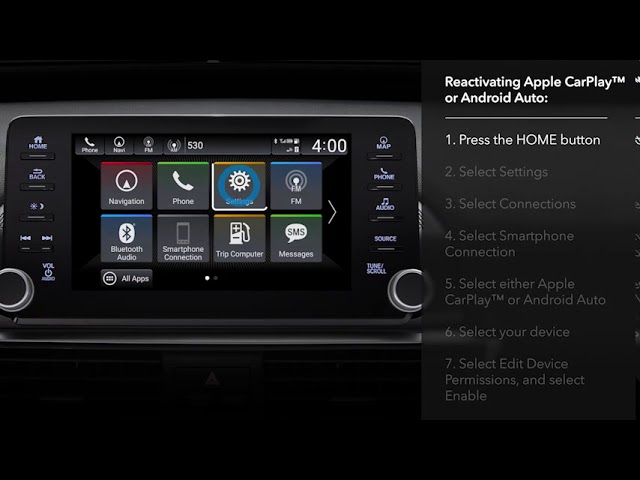
- On your Honda infotainment screen, go to Settings > Connections > Apple CarPlay and verify it is enabled.
- If nothing works, perform a head unit reset by holding the volume/power knob for 10 seconds until the screen goes dark and reboots.
- Update your Honda infotainment software via owners.honda.com using a USB flash drive with the latest firmware downloaded from Honda’s update portal.
Why Is My Honda Android Auto Not Working?
Android Auto issues in Honda vehicles typically come down to USB debugging not being enabled, an outdated Android Auto app, or the phone’s default USB mode set to “charge only.”
Changing the USB configuration to “File Transfer” or enabling USB debugging resolves the problem for most owners.
Common Causes
- USB mode set to “Charge Only.” Many Android phones default to charging mode when plugged in. You must manually switch to data transfer.
- Outdated Android Auto app. Google frequently updates Android Auto. Running an old version causes handshake failures with Honda’s head unit.
- Phone not compatible. Android Auto requires Android 8.0 or higher. Older phones or heavily skinned manufacturer ROMs may block it.
- VPN or ad-blocker interference. Active VPN connections or system-wide ad blockers can prevent the initial handshake between phone and car.
- Damaged USB-C port on phone. Lint accumulation inside the phone’s charging port reduces data connectivity even though charging works fine.
Step-by-Step Fix
- Open the Google Play Store and update the Android Auto app to the latest version.
- Clean your phone’s USB-C port gently with a plastic toothpick or compressed air to remove lint.
- After plugging in, swipe down your notification shade, tap the USB notification, and select File Transfer / MTP.
- Enable Developer Options on your phone (tap Build Number seven times), then go to Developer Options > Default USB Configuration and set it to “File Transfer.”
- Temporarily disable any active VPN or ad-blocker apps before connecting.
- On the Honda head unit, navigate to Settings > Connections > Android Auto and ensure it is enabled.
- If the issue persists, clear the cache of the Android Auto app: Settings > Apps > Android Auto > Storage > Clear Cache.
Honda Bluetooth Pairing Failed or Keeps Disconnecting
Honda Bluetooth drops are frequently caused by having too many paired devices stored in the system, a corrupted pairing profile, or Bluetooth version conflicts between older Honda units and newer phones.
Clearing the old device list and re-pairing fresh almost always fixes persistent disconnects.
Why It Happens
Honda’s Bluetooth module on models like the Accord (2018–2022) and CR-V (2017–2022) stores up to six or seven paired devices. Once the memory fills, the system behaves erratically.
Pairing profiles can also become corrupted after a phone OS update, causing the car to reject the connection even though it worked before.
How to Fix It
- On your Honda infotainment screen, go to Settings > Bluetooth > Paired Devices.
- Delete every paired device from the list, including your phone.
- On your phone, go to Bluetooth settings and “Forget” or “Unpair” the Honda from the phone’s side as well.
- Restart your phone completely.
- Restart the Honda head unit by holding the power/volume knob for 10 seconds.
- Re-pair the phone by initiating the pairing from the Honda screen, not the phone. Accept all permission prompts on the phone.
- If your Honda has HondaLink, ensure the HondaLink app is updated and not trying to manage the Bluetooth connection simultaneously, which can cause conflicts.
HondaLink App Not Connecting to Vehicle
The HondaLink app fails to connect when the vehicle’s telematics subscription has expired, the app is outdated, or the car is parked in an area with poor cellular signal.
HondaLink requires an active HondaLink subscription and relies on the vehicle’s built-in cellular modem to communicate.
Troubleshooting Steps
- Check your HondaLink subscription status by logging into owners.honda.com. Many complimentary subscriptions expire after one to three years depending on the trim level.
- Update the HondaLink app to the latest version from the App Store or Google Play Store.
- Ensure your phone has a strong cellular or Wi-Fi signal. HondaLink uses the cloud, not direct Bluetooth, for most features.
- Inside the HondaLink app, go to Account > My Vehicles and verify the correct VIN is linked.
- Reset the vehicle’s telematics by disconnecting the negative battery terminal for 15 minutes, then reconnecting. This forces the modem to reinitialize.
- On newer models (2023+ Civic, CR-V, Accord), check if over-the-air updates have paused. Go to Settings > System > Software Update on the head unit and manually check.
Model-Specific Smartphone Connection Issues
Frequently Asked Questions
Can I use wireless CarPlay in my Honda if it only came with wired CarPlay?
Yes. You can purchase a wireless CarPlay adapter dongle that plugs into the existing USB port. Popular options include the Carlinkit and Ottocast units.
They create a Wi-Fi bridge between your iPhone and the head unit, enabling wireless CarPlay on 2016 and newer Honda models that originally supported only wired connections.
Does Honda charge for firmware updates to fix smartphone connectivity?
No. Honda provides infotainment firmware updates for free through their owner portal at owners.honda.com. You download the update to a USB drive and install it yourself through the head unit’s settings menu.
Dealers may charge a labor fee if you ask them to do it, but the software itself costs nothing.
Why does my phone charge but CarPlay or Android Auto does not work?
Charging requires only two power pins in the USB connection, while data transfer requires all four or more pins depending on the USB standard. A damaged cable or a charge-only cable will deliver power but will not transmit data.
Replace the cable with a high-quality OEM or MFi-certified one and confirm you are plugged into the correct data-enabled port.
Will a factory reset of my Honda head unit delete my phone connection settings?
Yes. A factory reset wipes all paired phones, saved Wi-Fi networks, and personalized settings from the infotainment system. You will need to re-pair your phone and reconfigure preferences after the reset.
This is recommended only as a last resort when other troubleshooting steps have failed.
Final Takeaway: Fix Your Honda Smartphone Connection the Right Way
Do not let a dealership charge you hundreds of dollars for a smartphone connectivity issue. In the vast majority of cases, the problem traces back to a bad cable, disabled phone setting, or outdated software on either end.
Work through the troubleshooting steps above in order, starting with the simplest fixes first. A two-dollar cable swap or a 30-second settings change resolves more Honda smartphone connection problems than any expensive diagnostic scan ever will.
If you have tried every step and still have no connection, then it is time to have a technician inspect the USB port hardware or the head unit itself for internal failure.
Leave a Reply